 spitball
THE SHORT VERSION
What to take away
- Apple lists the Action button on iPhone 15 Pro models, the iPhone 16 lineup including 16e, iPhone 17, 17 Pro, 17 Pro Max, Air and 18 Pro models.
- Press and hold the Action button to run its action; a quick tap does nothing, which helps avoid accidental recordings.
- For Apple's recorder, open Settings > Action Button and swipe to Voice Memo.
- For Spitball, swipe to Shortcut and select Spitball's capture shortcut, or the button does nothing. Press and hold to start and to save.
- No Action button? Keep Voice Memos or Spitball on your first Home Screen and record in two taps.
WATCH THE IDEA
Save a thought with the Action button
A short illustrated clip: on iPhones with an Action button, press and hold to run the action you choose. Pick Voice Memo, or pick Shortcut and Spitball's capture shortcut, then press and hold to start recording and press and hold again to save.
Read the video transcript
This video has no narration. Pip, the Spitball paper-ball character, presses and holds a glowing side button on a tall paper iPhone, and a sound wave rises from it. Then Pip walks a small paper dog, has an idea, and speaks into the phone while a stopwatch sweeps a short arc. Captions: Apple lists the Action button on iPhone 15 Pro models and many later iPhones. Press and hold it to run the action you choose. Pick Voice Memo, or pick Shortcut and choose a capture shortcut. With Spitball's shortcut, press and hold to start recording. Press and hold again to finish and save the thought. A thought saved in seconds is a thought you keep.
On an iPhone with an Action button, go to Settings > Action Button and choose Voice Memo, or choose Shortcut and select Spitball's capture shortcut. Then press and hold the button to start recording. With Spitball, press and hold again to finish and save the thought.
This guide is for anyone who has an idea mid-walk, mid-commute or mid-conversation and wants it saved before it slips away. It lists which iPhones have an Action button, walks through both setups step by step, explains how to choose between them, and covers what to do when nothing happens. Spitball is our app, so we've been clear about its limits.
Apple details come from Apple's iPhone User Guide (iOS 27), checked October 20, 2026. Spitball steps come from Spitball Support. Menu names can differ slightly on other iOS versions.
Which iPhones have an Action button?
Apple lists the Action button on iPhone 15 Pro and iPhone 15 Pro Max, the iPhone 16 lineup including iPhone 16e, the iPhone 17 lineup except iPhone 17e, iPhone Air, and iPhone 18 Pro and iPhone 18 Pro Max. On those models, Apple says, "iPhone has an Action button in place of the Ring/Silent switch."
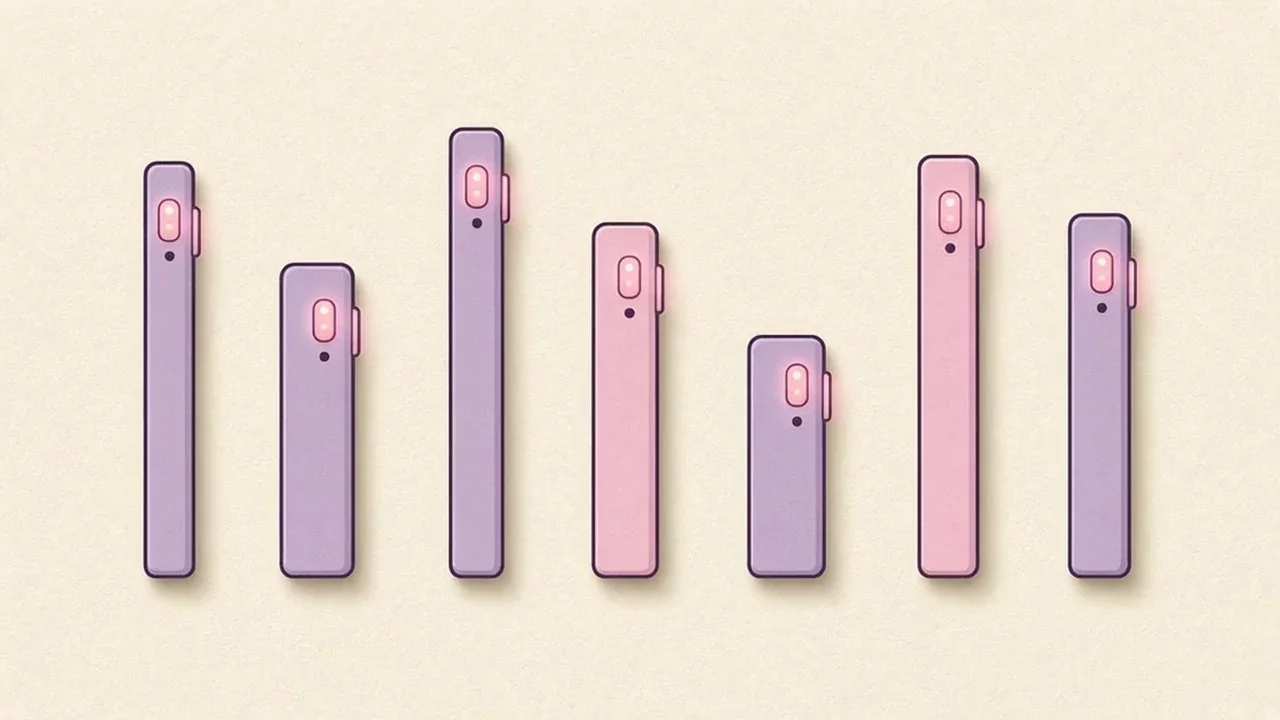
Here is Apple's full list of models with an Action button (Apple: Use and customize the Action button, checked October 20, 2026):
- iPhone 15 Pro and iPhone 15 Pro Max
- iPhone 16, iPhone 16 Plus, iPhone 16 Pro and iPhone 16 Pro Max
- iPhone 16e
- iPhone 17, iPhone 17 Pro and iPhone 17 Pro Max
- iPhone Air
- iPhone 18 Pro and iPhone 18 Pro Max
iPhone 17e appears in Apple's list of iPhones compatible with iOS 27 but not in its list of models with an Action button. If you're not sure which model you have, open Settings > General > About and check the model name. Apple updates this list as new iPhones ship, so check Apple's page if you have a newer model.
How does the Action button work?
You press and hold it. Apple says: "To perform the action assigned to the Action button, press and hold the Action button." A quick tap doesn't trigger it, which prevents accidental recordings in your pocket.
Out of the box, the button is set to Silent Mode. Apple's options include Silent Mode, Focus, Camera, Visual Intelligence (which requires Apple Intelligence), Flashlight, Voice Memo, Recognize Music, Translate, Magnifier, Controls, Shortcut, Accessibility and No Action. Apple describes the two that matter for capturing thoughts this way:
- Voice Memo: "Record personal notes, musical ideas, and more."
- Shortcut: "Open an app or run your favorite shortcut."
One catch trips people up. Apple warns: "For the Controls, Shortcut, and Accessibility actions, you need to tap the button below the action and select a specific option—otherwise the Action button does nothing." If you choose Shortcut but never pick one, the button stays silent.
How do I set the Action button to record a Voice Memo?
Choose Voice Memo in Settings, then press and hold the button to start recording in Apple's Voice Memos app.
- Open the Settings app.
- Tap Action Button. Apple says an image of the side of the iPhone appears with icons for the available actions.
- Swipe until Voice Memo appears below the dots.
- Leave Settings. The choice saves automatically.
- Press and hold the Action button to start a recording in Voice Memos, then stop and save it in Voice Memos as you normally would.
Voice Memo is a good choice for longer recordings, such as a full song take, a rehearsal or a lecture, because Voice Memos is built for them. On iPhone 12 or later in supported languages, Voice Memos can also transcribe the recording (Apple: View a Voice Memos transcription).
How do I set the Action button to Spitball's capture shortcut?
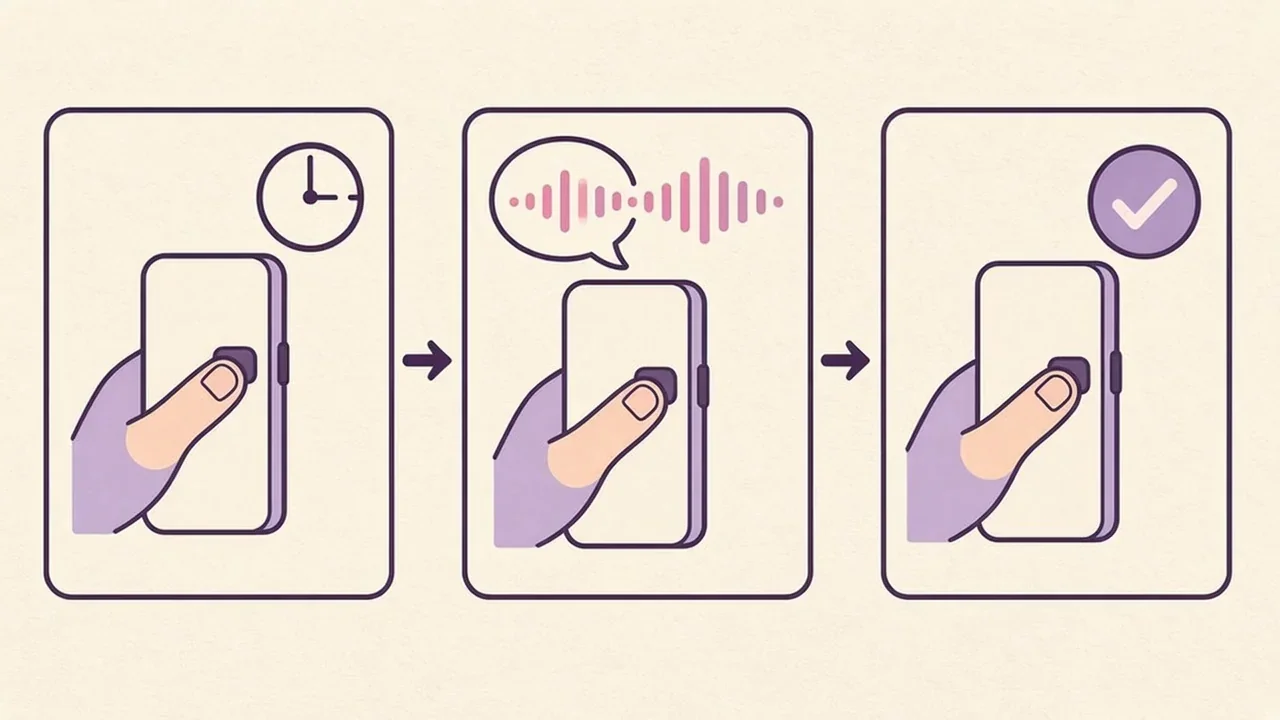
Choose Shortcut in Settings, then select Spitball's capture shortcut. Press and hold to start recording, and press and hold again to finish and save.
- Install Spitball through TestFlight and open it. Spitball includes an in-app setup guide for the Action button.
- Open iPhone Settings and tap Action Button.
- Swipe to Shortcut.
- Tap the button below the action and choose Spitball's capture shortcut. Don't skip this, or the Action button does nothing.
- Press and hold the Action button to start recording. Say your thought.
- Press and hold the Action button again to finish and save.
The first time you record, allow microphone access, and allow speech recognition if you want a transcript. Each thought can be up to 5 minutes long. Spitball uses on-device transcription with no cloud transcription fallback, transcribes English only, and keeps the original audio. The first transcription may need Apple's speech model to download, support varies by device, and transcripts can contain errors. You can always capture inside the app, too (Spitball Support).
For every other way to capture a thought, see our guide to how to take voice notes on iPhone.
Should my Action button record a Voice Memo or a Spitball thought?
Pick the app where you want the recording to live. The button is only as useful as what happens after you press it.
Choose Voice Memo if…
- You mostly record long things: rehearsals, lectures or interviews (with consent).
- You want transcripts in a language other than English. Apple lists ten languages for Voice Memos transcription on iPhone 12 or later.
- You want recordings on your iPad and Mac through iCloud.
Choose Spitball's capture shortcut if…
- You capture lots of short thoughts and want each one saved as its own item, with an English transcript and the original audio.
- You like the same gesture to start and to save: press and hold, speak, press and hold.
- You want no account, with thoughts stored on your iPhone by default and optional iCloud Sync using your own Apple Account.
- You'd like to add a photo or a place to a thought later, so you remember where it came from.
You can switch any time in Settings > Action Button, and you can keep using both apps. For a broader comparison of recording options, read our guide to voice notes on iPhone. To compare the apps themselves, see Spitball vs Voice Memos vs Notes.
What if nothing happens when I press the Action button?
Check that you're holding, not tapping, and that a specific shortcut is selected. Those two cause most problems.
- Press and hold. A quick tap doesn't trigger the action.
- Open Settings > Action Button and confirm the action you expect is showing. If it's Shortcut, make sure a shortcut name appears under it.
- Reselect Spitball's capture shortcut if you've reinstalled Spitball, and run through Spitball's in-app setup guide again.
- Check permissions in iPhone Settings: microphone access to record, and speech recognition for transcripts.
- If a transcript is missing, open the thought, play the audio and retry transcription with Spitball open. The recording is saved either way. More checks are in 8 fixes for voice memo transcription.
- Still stuck? Follow Spitball Support, or send feedback from TestFlight > Spitball > Send Beta Feedback with your app version and what you tried.
What if my iPhone doesn't have an Action button?
You can still capture fast. Put the app on your first Home Screen and record in two taps.
- Voice Memos: move it out of the Utilities folder onto your Home Screen, open it and tap Record.
- Spitball: open the app and record or type a thought. Spitball needs iOS 17 or later, and the Action button is optional.
The difference is a second or two. What matters more is having one obvious place for ideas, so you don't hesitate about where to put them.
How do I make a 3-second capture habit stick?
Decide in advance what the button is for, say the words you'll search for, and save one thought per press.

- Make the button mean one thing. If it's set to capture, use it only for capture, so your hand learns it.
- Lead with the keyword. "Gift idea for Maya: the blue notebook" is easier to find than "remember that thing."
- One thought per press. Short, separate thoughts are easier to search, share and act on than one long ramble.
- End with the next step. "Look into this," "ask someone" or "just keep it."
- Review once a week. Five minutes to act on the useful ones and let the rest go. Our guide to leaving a better note for future you has more habits like these.
The examples above are illustrative. Use common sense about when to capture: don't record while driving, and ask before recording other people. Spitball's terms ask you to get any consent required. For song ideas specifically, see how to record song ideas on iPhone.
About the author
This guide was written by Nik Sharma, the developer of Spitball. Spitball is published by Long Wknd LLC. Nik founded and later sold Sharma Brands, hosts the Limited Supply podcast, and writes a Sunday newsletter at nik.co. You can find him on X (@mrsharma), LinkedIn and Instagram (@sharma).
Questions about the Action button and Spitball? Start with Support, or DM Nik at @sharma on Instagram. For privacy details, see the privacy policy. Apple's Action button guide is the best reference for the built-in options.
Want to try it? Spitball is currently in beta through Apple's TestFlight. You'll need iOS 17 or later, and beta places are limited. It's free right now, and builds can expire. Get the Spitball beta.
A FEW MORE ANSWERS
Good questions.
Does iPhone 16e have an Action button?
Yes. Apple's list of models with an Action button includes iPhone 16e, along with iPhone 16, iPhone 16 Plus, iPhone 16 Pro and iPhone 16 Pro Max (checked October 20, 2026). iPhone 17e appears in Apple's iOS 27 compatibility list but not in its list of models with an Action button.
Can the Action button open an app?
Yes. Apple describes the Shortcut option as a way to open an app or run your favorite shortcut. In Settings > Action Button, swipe to Shortcut, then tap the button below it and pick a specific shortcut or app. If you don't pick one, Apple says the Action button does nothing.
Do I hold or tap the Action button?
Hold it. Apple says to press and hold the Action button to perform the action assigned to it, so a quick tap won't start a recording. With Spitball's capture shortcut, press and hold to start recording, then press and hold again to finish and save the thought.
Can I use the Action button with Spitball?
Yes, on iPhone models with an Action button. In Settings > Action Button, choose Shortcut and select Spitball's capture shortcut. Spitball also has an in-app setup guide. Each thought can be up to 5 minutes, with an English transcript made on your iPhone and the original audio kept.
Can I switch the Action button back to Silent mode?
Yes. Silent Mode is the Action button's default action, and you can return to it any time. Open Settings, tap Action Button and swipe back to Silent Mode. Your choice saves automatically, and you can switch between Silent Mode, Voice Memo and a shortcut as often as you like.