 spitball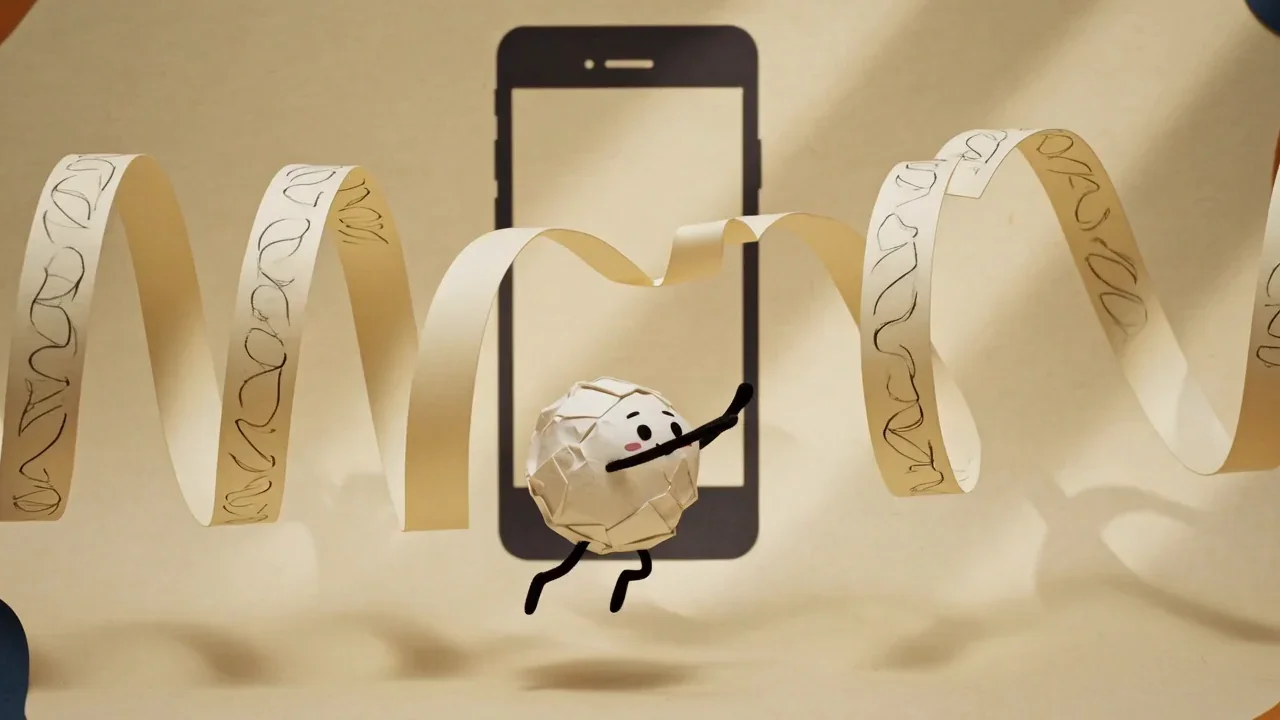
THE SHORT VERSION
What to take away
- Voice Memos transcribes on iPhone 12 or later in 10 languages; tap the More button, then View Transcript or Copy Transcript.
- Notes transcribes audio recorded in a note when your device language is supported, and can add the transcript to the note as text.
- Voice Memos automatically transcribes older recordings made in iOS 17 or earlier when you open them, if they include speech.
- Spitball transcribes English on your iPhone with no cloud fallback, and keeps the recording so you can retry or check it.
- For accurate transcripts, record close to the mic in a quiet place, say names clearly, and check the audio before relying on the text.
WATCH THE IDEA
How iPhone turns a voice memo into text, in 23 seconds
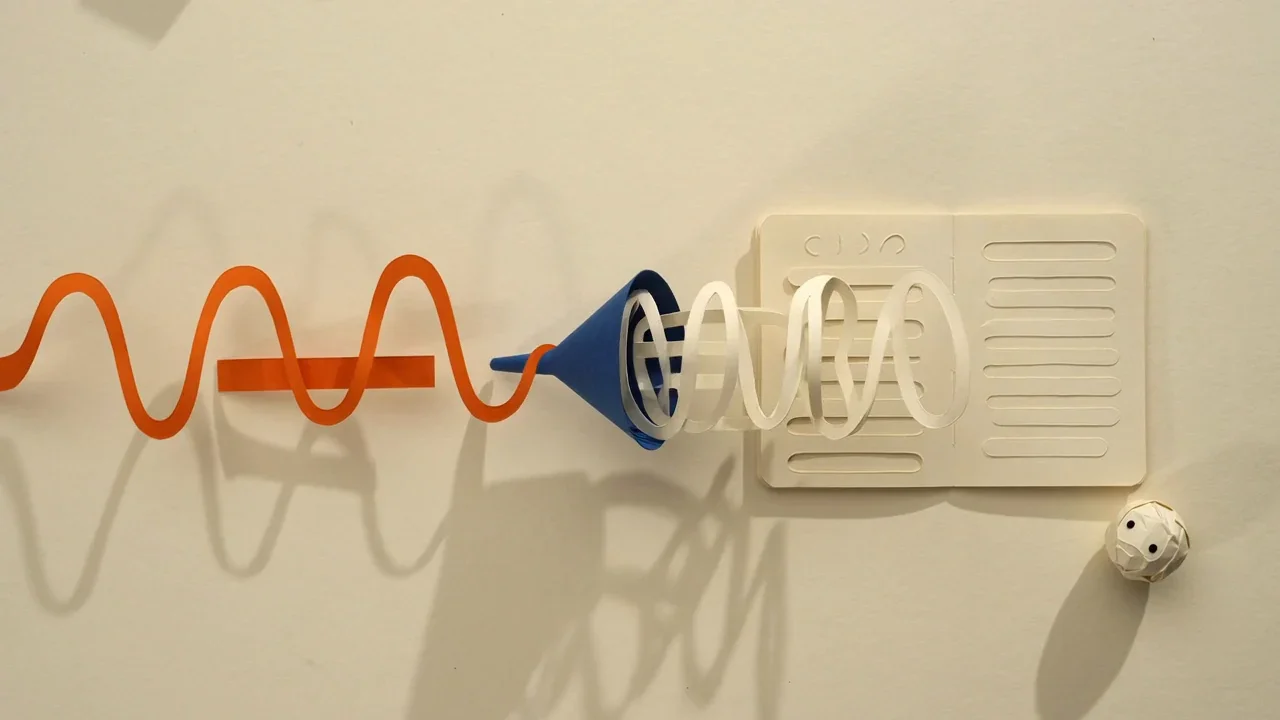
A short illustrated explainer: Voice Memos and Notes transcribe on iPhone 12 or later in 10 languages, what to check when a transcript is missing, and how Spitball keeps the original audio with an English transcript made on your iPhone.
Read the video transcript
This video has no narration. Pip, the Spitball paper-ball character, catches paper sound waves turning into strips of text, watches a waveform pass through a funnel into a notebook, hops across stepping stones marked microphone, globe, download and retry, then tucks a waveform into a box while a blank text strip fills in. Captions: iPhone can turn a voice memo into text. Voice Memos and Notes transcribe on iPhone 12 or later, in 10 languages. No transcript? Check your model, language, region and permissions. Spitball keeps the original audio, so you can check it or retry the transcript. Spitball transcribes English on your iPhone. It's free right now in a TestFlight beta.
To transcribe a voice memo on iPhone, open the recording in Apple's Voice Memos app, tap the More button, and choose View Transcript or Copy Transcript. Transcription works on iPhone 12 or later in 10 supported languages. Apple Notes can transcribe audio you record inside a note, too.
This guide covers all three routes: Voice Memos, Notes, and a capture app such as Spitball, which keeps a transcript next to the original audio. Spitball is our app, so we've included its limits as well as its strengths. You'll also learn why a transcript can go missing and how to get more accurate text from the start.
The Apple steps follow Apple's iPhone User Guide for iOS 27, checked October 20, 2026, and each Apple claim links to its source page. Spitball details come from Spitball's published support and privacy pages. Menu names can differ slightly on older versions of iOS.
Which iPhones and languages support voice memo transcription?
Voice memo transcription needs an iPhone 12 or later and a supported language. Apple says audio transcription in Voice Memos "is available on iPhone 12 or later in English (all variants), Spanish, Portuguese, Italian, French, German, Japanese, Korean, Simplified Chinese, and Traditional Chinese," and that "it's not available in all countries or regions" (Apple: View a Voice Memos transcription).
Notes uses the same list with one extra condition: Apple says transcription in Notes is available on iPhone 12 and later "when the device language is set to" one of those languages (Apple: Record and transcribe audio in Notes). So the language your iPhone is set to matters in Notes, not only the language you speak.
Spitball has its own requirements, because it's a separate app:
- iPhone with iOS 17 or later. Spitball is an iPhone app; there's no iPad version.
- English only. Spitball transcribes English right now.
- Up to 5 minutes per thought. Each recording can be at most 5 minutes long.
- Apple's on-device speech. Spitball uses Apple's on-device speech capabilities, and support varies by device and language.
To check your model and iOS version, go to Settings > General > About. Apple lists the Model Name and iOS software version there (Apple: Get information about your iPhone).
How do I see a transcript in Voice Memos?
Voice Memos can show the transcript while you're recording or after you've saved the recording. Both options are in the same app, which Apple keeps in the Utilities folder.
Watch the transcript appear while you record
- Open Voice Memos and tap the Record button.
- Swipe up from the top of the waveform, then tap the transcript button. The waveform disappears for a moment and the words appear live, with the current word highlighted.
- Tap the transcript button again to return to the waveform. Tap Pause and Resume to record in parts, then tap Done to save.
View or copy the transcript after recording
- In Voice Memos, tap the recording you want.
- Tap the More button.
- Choose View Transcript to select part of the text and tap Copy, or choose Copy Transcript to copy all of it.
Then paste the text into a message, an email or a document. Apple's steps for both methods are on its Voice Memos transcription page.
Search your recordings by what you said
Voice Memos search covers both titles and transcripts. Tap the search button and type a word: the list shows only recordings with that text, and selecting a term in a transcript moves the playhead to that point in the audio. That makes a transcript useful even if you never copy it anywhere.
Can I transcribe a voice memo I recorded before?
Yes, in many cases. Apple says that if you open a recording made in an earlier version of Voice Memos (iOS 17 or earlier), Voice Memos "will transcribe it automatically if it includes recorded speech." Open the old recording on a supported iPhone, give it a moment, and then check the More button for View Transcript.
That only applies to recordings already in Voice Memos. Apple's transcription pages don't describe importing outside audio files into Voice Memos or Notes for transcription, so don't count on it. If you have an audio file from somewhere else, a dedicated transcription service may be the better fit. Check that service's own documentation for supported file types and where it processes your audio before you upload anything private.
Spitball works on thoughts you capture in Spitball itself, by recording or typing. Spitball's documentation doesn't describe importing existing audio files, so plan to use it for new ideas rather than an archive of old memos. For new short thoughts, it saves the transcript and the original recording together.
How do I transcribe audio in Apple Notes?
Notes is the right choice when the transcript belongs inside a written note, such as a meeting page or a class outline. Apple's steps (Record and transcribe audio in Notes):
- Open Notes and open or create a note.
- Tap the Attachment button, then tap Record Audio.
- Tap the Record button to start. Tap the transcript button to see the live transcript.
- When you're finished, tap Stop, then tap Done.
Once a recording is in a note, tap it and then tap the transcript button to review the text. From there you can tap any word to play the audio from that point, search with Find in Transcript, or choose Add Transcript to Note or Copy Transcript. Adding the transcript to the note gives you regular note text you can edit.
Two details are easy to miss. First, Apple notes that "deleting the audio recording also deletes the transcript," so add or copy the text before you remove a recording. Second, on an iPhone 15 Pro, iPhone 15 Pro Max or an iPhone 16 model or later with Apple Intelligence, Notes can generate a summary of the transcript. Apple says Apple Intelligence isn't available in all languages or regions, and usage limits may apply.
If you don't see the transcript button, Apple says your iPhone "either doesn't meet the minimum requirements or doesn't detect a supported language." Our guide to fixing voice memo transcription that isn't working walks through what to check.
How does Spitball transcribe voice notes?
Spitball transcribes each recorded thought on your iPhone using Apple's on-device speech capabilities. The transcript is saved with the original audio, so you can read the text and replay exactly what you said. According to Spitball's privacy policy, Spitball "may need to download a speech model first," and if on-device transcription is unavailable, "the app keeps your recording rather than uploading it to a cloud transcription service."
In practice that means:
- On-device transcription with no cloud transcription fallback. If a transcript can't be made on your iPhone, Spitball doesn't send the audio elsewhere to try.
- The recording is kept either way. Spitball Support says your recording can still be saved when transcription doesn't finish. You can open the thought, play the audio, and retry transcription.
- Leave the app open while it works. Spitball Support recommends keeping Spitball open while a transcript is being made, and checking speech permissions in iPhone Settings.
- English only, up to 5 minutes per thought. Spitball is built for short spoken thoughts, not long recordings.
- Stored on your iPhone by default. Thoughts, transcripts and recordings stay in Spitball's local library unless you turn on optional iCloud Sync using your own Apple Account.
Spitball also lets you add a photo or a place to a thought, and search for a word you remember. On iPhones with an Action button, you can start a thought without opening the app; see our Action button voice note guide. For what on-device processing means for your privacy, read how on-device transcription works on iPhone.

Do I need an internet connection to transcribe on iPhone?
For Spitball, no. Spitball transcribes on your iPhone and capture works offline; the first transcription may need Apple's speech model to download, which may need a connection. Optional iCloud Sync catches up later when you're back online.
For Apple's own apps, Apple's Voice Memos and Notes transcription pages list the device, language and region requirements but don't state whether transcription needs a connection, so check on your own iPhone rather than assuming either way. Apple is explicit about a related feature: Dictation, the microphone button on the keyboard, "is processed on your iPhone in many languages, and no internet connection is required," though text you dictate into a search field may be sent to the search engine (Apple: Dictate text).
For what works offline and why a speech model downloads first, see how on-device transcription works on iPhone.
How can I get a more accurate transcript?
Speech-to-text makes mistakes, especially with names, jargon, accents and background noise. A few habits make a bigger difference than switching apps:
- Get close and stay uncovered. Hold the iPhone a comfortable distance from your mouth and keep your fingers off the microphone. Apple's Voice Memos guide suggests moving the microphone closer to or farther from the source to adjust the level.
- Cut the background noise. Step away from traffic, fans and music, or pause the recording until a noise passes, then resume.
- Speak in short, complete sentences. Pausing between thoughts gives the recognizer clear boundaries. Short recordings are also easier to check.
- Say names and numbers clearly. Spell unusual names out loud if accuracy matters, for example "Sana, S-A-N-A."
- Speak the language the app expects. Notes depends on your device language, and Spitball transcribes English only.
- Check the audio before you rely on the text. Tap a word in a Notes transcript to hear that moment, or replay the recording in Spitball.
Spitball's terms make the same point plainly: transcripts can contain errors, so check the original audio when it matters. That's why keeping the recording is a feature rather than clutter. Don't rely on sung lyrics becoming clean text either; for melodies and lyrics, see how to record song ideas on iPhone.
Can I edit a transcript on iPhone?
In Notes, yes, indirectly. Choose Add Transcript to Note, and the text becomes part of the note, where you can edit it like any other note text. In Voice Memos, Apple's guide describes viewing and copying transcripts, so the practical route is to copy the transcript and edit the pasted text in Notes, Mail or a document.
On iPhones that support Apple Intelligence, Apple says you can use Writing Tools to summarize a Voice Memos transcript or proofread your work. That's useful for turning a rambling memo into tidy notes, but read the result against the audio before you share it.
Spitball's documentation describes revisiting the transcript, keeping the original audio and retrying transcription. It doesn't describe editing a transcript inside the app, so we won't claim that it can. If you need a polished version of a Spitball thought, share it as text and edit it where it lands.
Which transcription option should I use?
Pick the tool that matches what you're recording:
- Use Voice Memos for longer recordings, such as lectures, rehearsals or interviews you have permission to record, and for recordings you want searchable by what was said.
- Use Notes when the transcript should live inside a written note and become editable text.
- Use Dictation when you want typed text right now, in any text field, rather than a recording.
- Use Spitball for short spoken thoughts of up to 5 minutes that you want saved with a transcript, the original audio, and optionally a photo or place, stored on your iPhone by default.
Many people use more than one. A quick idea on a walk might go into Spitball, while a 40-minute class goes into Voice Memos. For a walkthrough of every way to record, start with our guide to voice notes on iPhone. To compare the apps side by side, see Voice Memos vs Notes vs Spitball.

Before you rely on any transcript for something important, such as a quote, a number or a decision, play back that part of the audio. And if you record other people, ask first and check your local laws.
About the author
This guide was written by Nik Sharma, the developer of Spitball. Spitball is published by Long Wknd LLC. Nik founded and later sold Sharma Brands, hosts the Limited Supply podcast, and writes a Sunday newsletter at nik.co. You can find him on X (@mrsharma), LinkedIn and Instagram (@sharma).
Questions about Spitball? Start with Support, read the privacy policy, or DM Nik at @sharma on Instagram. Sources for this guide: Apple's iPhone User Guide for iOS 27 (Voice Memos, Notes, Dictation and About pages) and Spitball's support and privacy pages, all checked October 20, 2026.
Ready to try it? Get the Spitball beta. Spitball is currently in beta through Apple's TestFlight. It's free right now, you'll need an iPhone with iOS 17 or later, and beta places are limited.
A FEW MORE ANSWERS
Good questions.
Does iPhone transcribe voice memos automatically?
Yes, on iPhone 12 or later in a supported language. Voice Memos can show the transcript while you record, or you can view and copy it afterward from the More button. Apple says transcription isn't available in all countries or regions.
Which languages can Voice Memos transcribe?
Apple lists English (all variants), Spanish, Portuguese, Italian, French, German, Japanese, Korean, Simplified Chinese and Traditional Chinese for Voice Memos transcription. Notes uses the same list, but your device language must be set to one of them. Spitball transcribes English only.
How do I copy a voice memo transcript into Notes?
In Voice Memos, tap the recording, tap the More button, then Copy Transcript, and paste it into a note. In Notes, open the recording and choose Add Transcript to Note. Steps from Apple's iPhone User Guide for iOS 27, checked Oct 20, 2026.
Can I edit a transcript on iPhone?
In Notes, choose Add Transcript to Note and the text becomes editable note text. In Voice Memos, copy the transcript and edit the pasted text in another app. Spitball keeps the transcript and original audio; its documentation doesn't describe editing transcripts in the app.
Does Spitball send my audio to the cloud to transcribe it?
No. Spitball uses Apple's on-device speech capabilities, and if on-device transcription isn't available it keeps your recording rather than uploading it to a cloud transcription service. The first transcription may need to download Apple's speech model.